A Practical Guide to Delete PDF Pages Online for Better Document Management
Learn how to delete PDF pages online
Deleting PDF pages makes a document fit for purpose. The removal of irrelevant, sensitive, or duplicate pages is necessary for whatever directive your PDF document has. Whether it’s a document for a client or a shared resource internally, cleaning a PDF helps provide better document management.
Knowing how to do this successfully will provide you with a fast and repeatable method that’s easy for everyone in a company to learn. As of 2023, 98% of businesses in one survey reported using PDFs for external document sharing. Thus highlighting its reputation and importance when it comes to preserving document integrity
From client reports to scanned contracts, there are plenty of reasons to utilize this method when improving your PDF documents.

Introduction to deleting PDF pages online
Unmanaged PDFs create friction, whether that’s long loading times, confusing page navigation, or sensitive data being exposed.
There’s an operational impact that occurs, too, when you have larger files slowing down email delivery, or cluttered documents that reduce their readability to those who receive them.
Deleting pages is a low-effort but high-impact improvement for document workflows.
Why you might need to delete PDF pages
There are many reasons why you might need to delete PDF pages from a document. Scanned documents that often include blank pages or duplicates may require deletion.
For some older PDF documents, certain data might be irrelevant or outdated and no longer necessary for inclusion. By having cleaner documents, it reduces the back-and-forth, helping improve stakeholder confidence and prevent any confusion for the readers of the PDF.
Benefits of using online PDF tools
Online PDF tools are effective when it comes to deleting pages. They remove the friction from the process as they require zero software installation, typically. There are usually no compatibility issues, and it offers immediate access across any devices.
A practical benefit of using these tools is that it’s great for distributed teams or for doing quick edits on the go. Of course, there are a few constraints to using these tools, like so many other online tools available. A reliance on internet access and there are potential security risks, which makes tool selection an important one to consider, rather than just choosing any random one.
Step-by-step guide to delete PDF pages online
If it’s your first time deleting PDF pages online, then it’s good to have a workflow that’s predictable in the way it operates. Most tools will follow the structure of upload → review → edit → export.
Having this streamlined and predictable system in place, it helps lower the technical barrier and makes it more accessible for even the non-technical users of the company.
Step 1 – Upload your PDF file
Firstly, you’ll need to upload your file using what is often a simple drag-and-drop or file selection. It’s good to check before uploading, the file size limits, and whether the document contains any sensitive data. It’s also good to check you’re working from the correct version too. There’s nothing worse than doing all that work on an outdated version.
Common pitfalls include uploading the wrong draft, as mentioned above, or using a compressed version that’s already lost quality.
You also want to think about the tools you’re using and making sure they’re secure with HTTPS and have clear file-handling policies, too.
Step 2 – Select and remove unwanted pages
The interface of your chosen tool will typically show thumbnail previews, which allow users to visually scan their documents and select the relevant pages for potential deletion.
It’s useful to use the zoom functionality on thumbnails to check page numbers against the table of contents and to remove pages in batches where possible. Using services like Small PDF to delete PDF pages online helps to simplify both selection and deletion.
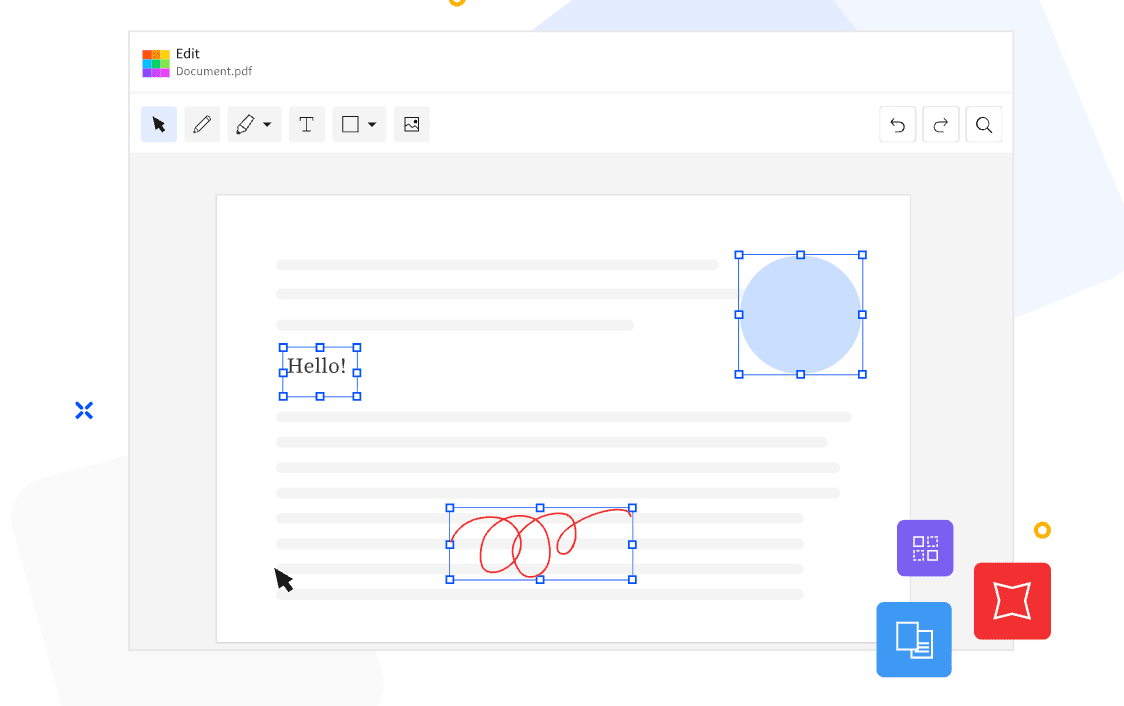
Be sure to quickly review what you’re about to delete before confirming so that you’re not deleting the wrong pages or content.
Step 3 – Download and save the updated PDF
Once the deletions have been successful, you’ve got a few export options to choose from. It could be downloaded locally or saved to cloud storage like Dropbox or Google Drive.
It’s a good idea to rename files with version indicators like ‘v1_clean’, for example, to preserve any of the original documents. Ensure all edited versions of the document open correctly and retains it’s formatting across all devices used.
Best online tools for deleting PDF pages
Choosing the right online tool for deleting PDF pages is important because there are a lot of choices, but also plenty of online tools that aren’t legitimate or have security issues.
You should have a checklist of requirements to look for when browsing these tools, from usability and the intuitiveness of the interface to speed and reliability. The best tool will depend on the use case, so whether that’s for occasional personal edits versus frequent business use.
Free vs paid PDF editing tools
Free tools are more cost-effective, especially for those who don’t get it on a business expenses. Those tools that are free will typically give you basic page deletion, offer limited file sizes, and occasional usage caps.
For paid versions, you’ll likely get more options like batch processing and larger file support. The choice you make depends on your needs and requirements.
Key features to look for
Key features to look out for when browsing these online PDF editing tools include:
- Drag-and-drop reordering
- Batch deletion for larger files
- Cloud integrations for workflow efficiency
- Security features like encryption, compliance, and automatic file deletion after processing
Any of these features that are missing will likely slow down workflows and also introduce risk to your processes.
Tips for better document management with PDFs
Page deletion is one part of a broader system when it comes to managing PDFs effectively. Consistency in your habits, from naming to organizing and compressing documents, will compound over time and help reduce friction.
This is especially important in team environments where multiple people will access the same files.
Naming and organizing PDF files
Provide accurate naming formats so that it helps for easy sorting, quick identification, and reduced duplication. As an operational benefit, it leads to less time searching as well as fewer errors when sharing files.
Reducing file size and improving performance
Large PDFs will slow down uploads, downloads, and email delivery, so reduce file size through compression and deleting unnecessary pages.

Ensuring document security and privacy
Go beyond deletion with your PDF documents. Don’t risk leaving sensitive data in shared documents. Password protection or encryption is a great way to add additional layers of security.
Clean PDFs, faster workflows, fewer headaches
It’s helpful to delete PDF pages online because even as a small process, it has an impact on productivity and document quality.
Adopt a simple workflow when cleaning your PDFs: review, delete, save, and organize. Stick to reliable tools to keep your efforts effective. Keeping your digital documents manageable and professional will only benefit your business moving forward.

Author Bio: Natalie Griffiths (LinkedIn)
Natalie is a freelance writer with five years of experience in copywriting for businesses, spanning many industries.
Comments
Loading comments…