If you’ve already gone through my HyDE + Arch Linux guide and have a working Arch base, this guide picks up right where that one left off. We’re not reinstalling Arch, we’re not touching archinstall all of that is covered there.
This guide is purely about Caelestia, what it is, how to install it, and how to get it working from a clean Arch terminal.
What Makes Caelestia Different from HyDE?
Both are built on Hyprland, but the philosophy is different. HyDE is theme-centric it gives you a library of switchable themes and a wide set of pre-bundled tools. Caelestia is more opinionated and tightly integrated. It replaces Waybar entirely with a Quickshell-based shell a modern QML framework that powers the panel, launcher, wallpaper picker, and system controls as a single cohesive unit.
The standout feature is its dynamic color scheme system: set a wallpaper and Caelestia generates your entire accent palette from it automatically. Everything the panel, the launcher, notifications updates to match.
What You Need Before Starting
- A working minimal Arch Linux installation with a user that has sudo access
- Internet connection active
- That’s it
No desktop environment needed. Caelestia handles everything from here.
Step 1: Install an AUR Helper
Caelestia pulls several packages from the AUR, so you need either yay or paru before anything else.
Install yay:
sudo pacman -S --needed git base-devel
git clone https://aur.archlinux.org/yay.git
cd yay && makepkg -si
Or install paru:
sudo pacman -S --needed git base-devel
git clone https://aur.archlinux.org/paru.git
cd paru && makepkg -si
Pick one and stick with it you’ll pass it to the install script later.
Step 2: Install fish
Caelestia’s install script is written in fish shell. It won’t run without it:
sudo pacman -S fish
Step 3: Clone the Repo
The repo must live at ~/.local/share/caelestia. This is not optional, the install script symlinks all configs from this exact path. If you move or delete the folder after installation, most apps will break and Hyprland itself will fail to start.
git clone https://github.com/caelestia-dots/caelestia.git ~/.local/share/caelestia
Step 4: Run the Installer
~/.local/share/caelestia/install.fish
Optional Flags
The script has a few flags for extra apps:
--noconfirm                    skip confirmation prompts
--spotify                      install Spotify with Spicetify theming
--vscode=[codium|code]         install VSCodium or VSCode
--discord                      install Discord (OpenAsar + Equicord)
--zen                          install Zen browser
--aur-helper=[yay|paru]        specify your AUR helper (default: yay)
Example with everything:
~/.local/share/caelestia/install.fish --spotify --discord --zen --vscode=codium --aur-helper=paru
Or if you just want the base setup with no prompts:
~/.local/share/caelestia/install.fish --noconfirm --aur-helper=yay
The script handles dependency installation, service setup, and symlinking all configs into ~/.config/ automatically. It will ask for your password several times just enter it and keep going. Expect 15–30 minutes as some packages are compiled from source.
Step 5: Set Up a Login Manager
Caelestia does not ship with a login manager. You have two options.
Option A: greetd + tuigreet (recommended)
yay -S greetd tuigreet
Edit /etc/greetd/config.toml:
[terminal]
vt = 1
[default_session]
command = "tuigreet --cmd Hyprland"
user = "greeter"
Enable it:
sudo systemctl enable greetd
Option B: SDDM (graphical)
sudo pacman -S sddm
sudo systemctl enable sddm
Option C: Log in from TTY
If you don’t want a login manager at all, just log in from the terminal and run:
uwsm start hyprland
Step 6: Reboot
reboot
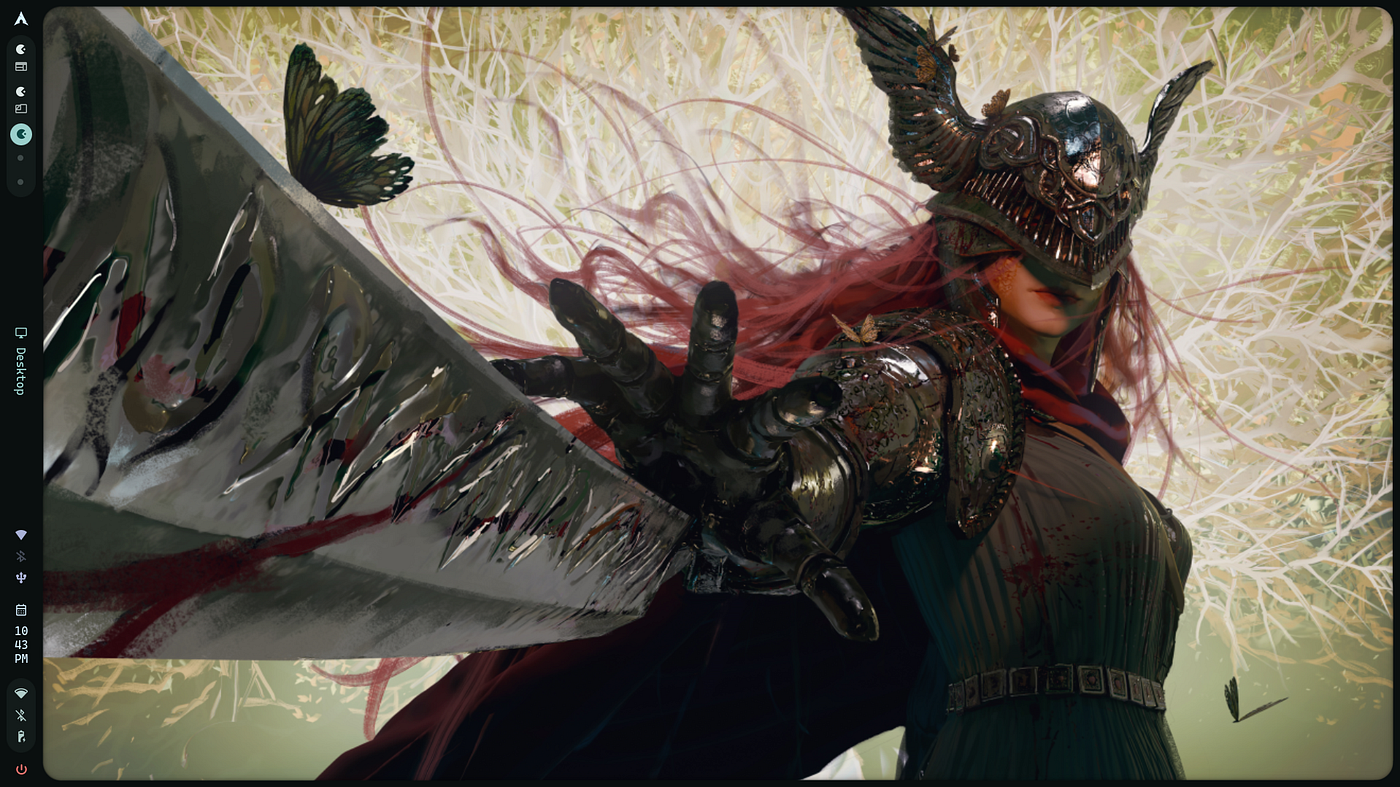
Hyprland will start automatically on login. The Caelestia shell loads with it you’ll see the left-side panel, the launcher, and system controls ready to go.
First Things to Do After Boot
Set a Wallpaper
The dynamic theming system only activates once a wallpaper is set. Drop your images into ~/Pictures/Wallpapers, then either open the launcher and search for "wallpaper", or run:
caelestia wallpaper -f /path/to/image.jpg
Enable Dynamic Color Scheme
caelestia scheme set -n dynamic
This reads your wallpaper and generates accent colors for the entire shell.
Start the Shell Manually (if it didn’t autostart)
caelestia shell -d
# or
qs -c caelestia
Configuration
All config lives in ~/.config/caelestia/. The main file shell.json is not created by default. You make it yourself:
mkdir -p ~/.config/caelestia
nano ~/.config/caelestia/shell.json
Any option you leave out just uses its default. Example:
{
  "font_size": 16
}
Per-Monitor Overrides
You can override settings per monitor:
~/.config/caelestia/monitors/<screen-name>/shell.json
Replace <screen-name> with your monitor's identifier (e.g. eDP-1, DP-2). Not all options support per-monitor overrides most notably, color scheme options are global only.
Fine-Tuning Design Tokens
For deeper control over spacing, rounding, padding, and animation curves without touching source code, create:
nano ~/.config/caelestia/shell-tokens.json
These tokens are multiplied against the base values set by shell.json, so you can dial in very precise adjustments.
Keeping Caelestia Updated
Update AUR packages (including Caelestia’s dependencies):
yay
Update the configs:
cd ~/.local/share/caelestia && git pull
Because everything is symlinked, a git pull is all you need no reinstall required.
Troubleshooting
Black screen after login Install the missing Wayland portal:
sudo pacman -S xdg-desktop-portal-hyprland
Wallpaper not showing up in the launcher The launcher reads from ~/Pictures/Wallpapers. Make sure your images are in that folder. The launcher also only displays an odd number at a time if you have 2 wallpapers, add a third.
Font too small In ~/.config/caelestia/shell.json, set "font_size" to 18 or 20.
Package conflicts during install Run yay -Syu first to fully update your system, then retry the install script. Alternatively, pass --noconfirm to let it resolve automatically.
Configs broken after moving the repo The only fix is to re-clone to ~/.local/share/caelestia and re-run install.fish. There is no workaround the symlinks are hardcoded to that path.
Conclusion
Caelestia takes everything that makes Hyprland great and wraps it in a shell that actually feels designed rather than assembled. If HyDE was your introduction to the world of Arch ricing, Caelestia is where you go when you want something with a stronger identity.
The install is automated, the theming is dynamic, and once it’s running it’s genuinely one of the best-looking desktops on Linux right now.
Before you go
Thousands of developers share what they’re building, learning, and discovering across our publications every month. One account connects you to our entire network of publications and communities.
Comments
Loading comments…