Learn how to remove unwanted objects from videos using the latest 2026 tools. This simple guide covers AI apps, desktop editors, and quick steps to clean up your footage.
Removing unwanted objects from video was the domain of expert editors before, but in 2026, even a beginner can do it quite easily. With the help of better AI solutions and the latest video editing software, one can make their video look professional and get rid of the unwanted elements with just a few clicks.
Whether it’s a person in the background or a mistake you want to hide, this guide will show you the simplest ways to remove objects from any video. Let’s explore!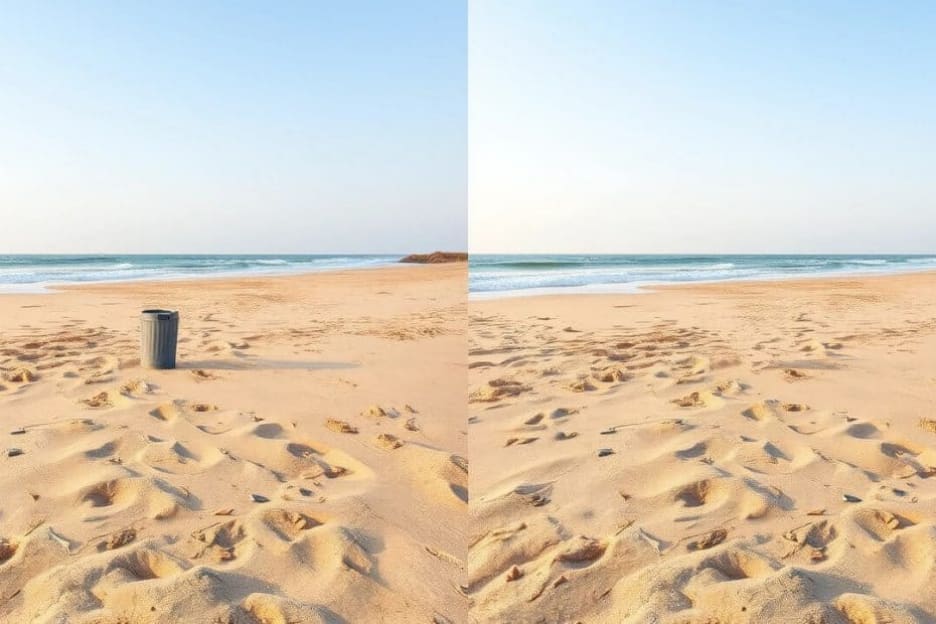
Part 1: How to Remove Objects from Video on PC
1. Filmora
Filmora makes removing objects from the video super easy with its AI Video Object Remover function. Ditching people, text, logos, watermarks, or any unwanted elements is just a matter of using simple brush or box selections. Also, the tool tracks the moving object automatically, fills the background perfectly, and maintains the video quality. Hence, it is a perfect solution for startups, vloggers, editors, and anyone who wants a neat shot without complex editing.
Step 1: Import your video
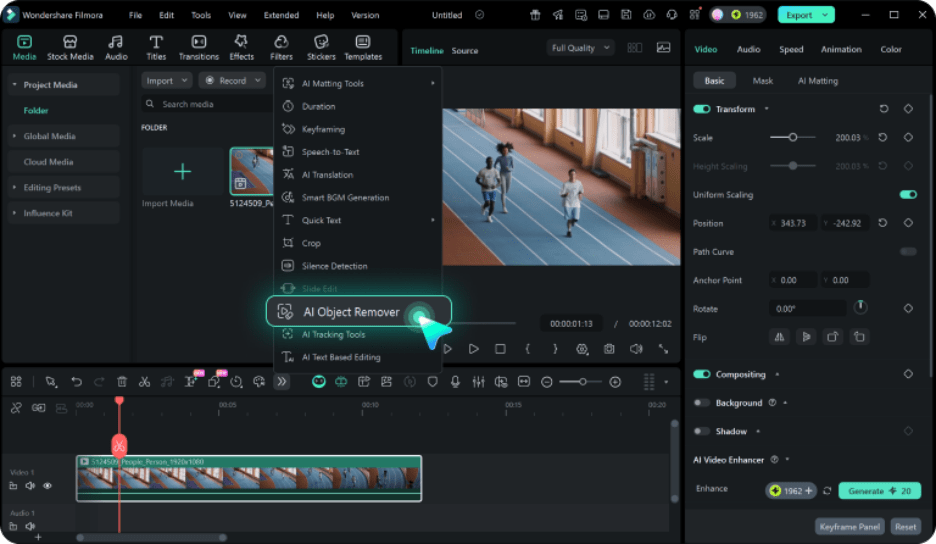
Launch Filmora, import your video into the media area, and drop it onto the timeline. Highlight the clip and select AI Object Remover from the upper toolbar.
Step 2: Point out the object to be removed
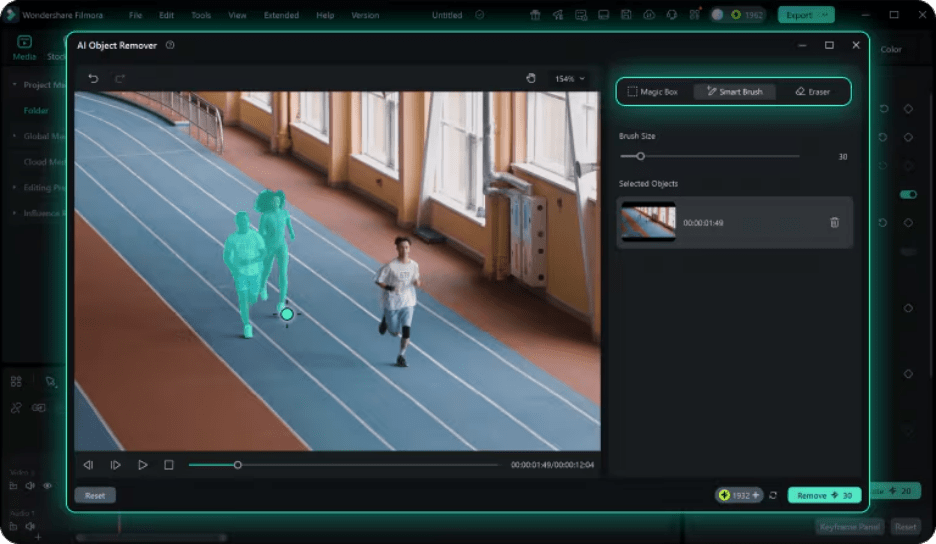
You can either pick Magic Box or Smart Brush.
- For complex shapes like a person or an arbitrary item, use the brush tool
- If removing text, logos, or watermarks, box mode will be more effective
Change the size of the brush if it's necessary, flip to the eraser tool for making mistakes, and press Remove.
Step 3: Save your video without the object
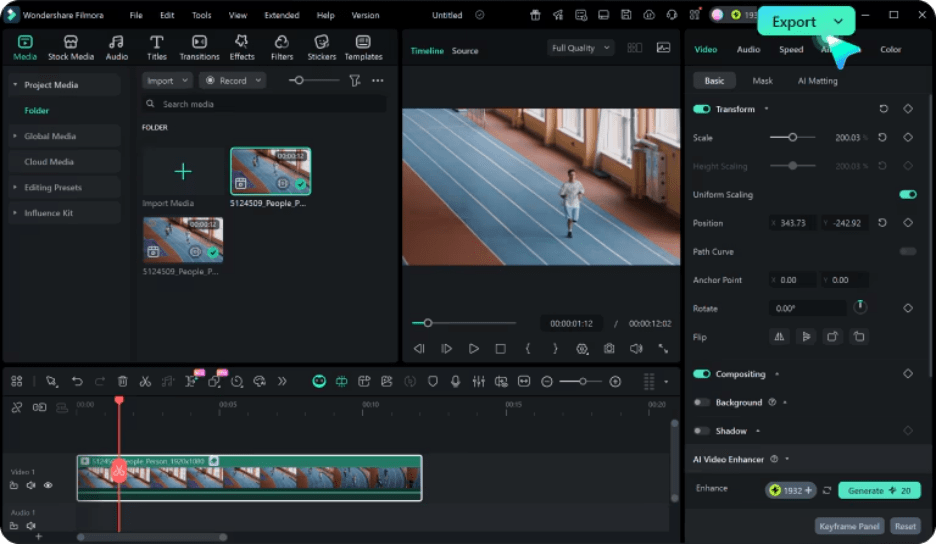
Using AI, Filmora automatically fills the deleted region in such a way that it seems quite natural. If you like the final product, just tap Export to save or share the video.
2. CapCut
CapCut desktop editor provides a simple method for object removal by combining masking, background removal, and AI-assisted tools. It is a free tool, extremely easy for beginners, and capable of hiding elements like text, logos or distractions without compromising the overall quality of a video. With CapCut, you get versatile masking options to conceal or cover items, AI-driven custom removal for better recognition, background elimination, chroma key support, and frame-by-frame editing to have the utmost control.
Step 1: Import your video
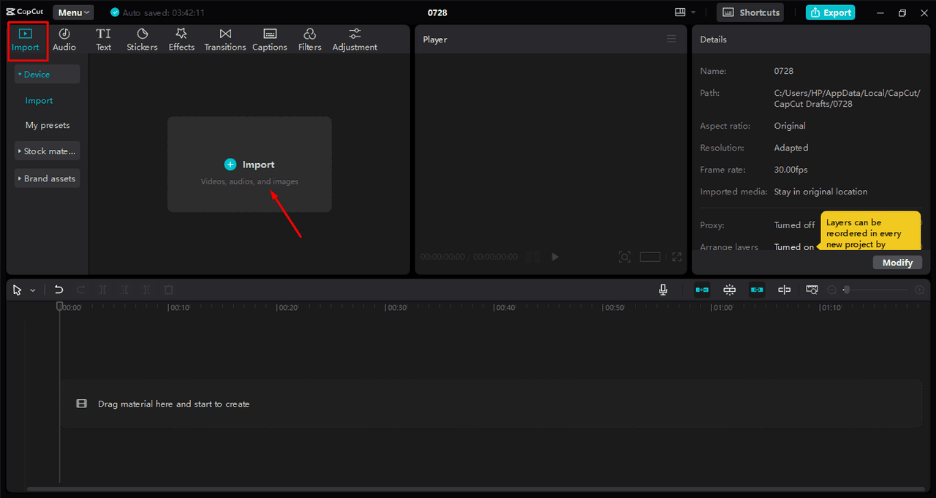
Open CapCut, start a new project. Click on Import to upload your video.
Step 2: Use a mask to hide the object
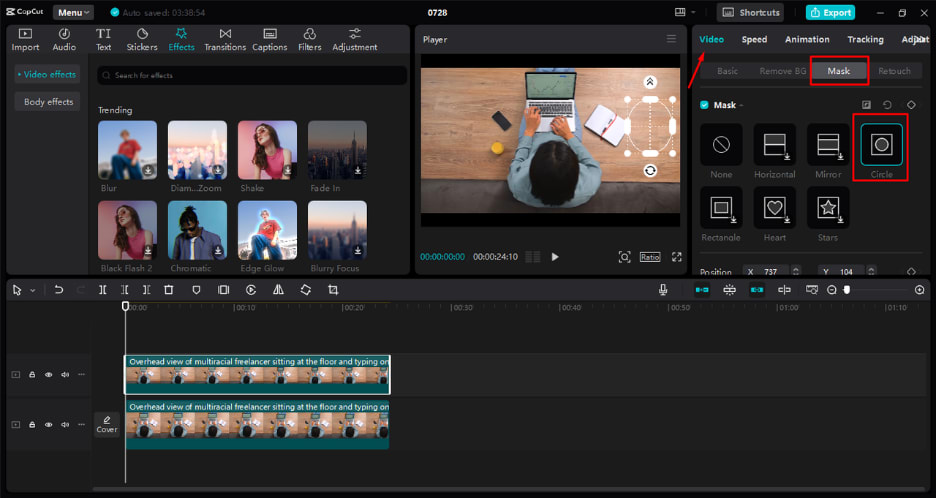
After dragging the video to the timeline, make a duplicate of the clip. Focus on the upper layer, navigate to Mask, pick a shape (for instance, circle or linear), and lay it over the item you wish to conceal. Modify the size and softness so that the blending looks natural.
Step 3: Export your video
After the object has been masked cleanly, hit Export and store your edited video.
Part 2: How to Remove Objects from Video on Mobile Phone
1. Filmora Mobile
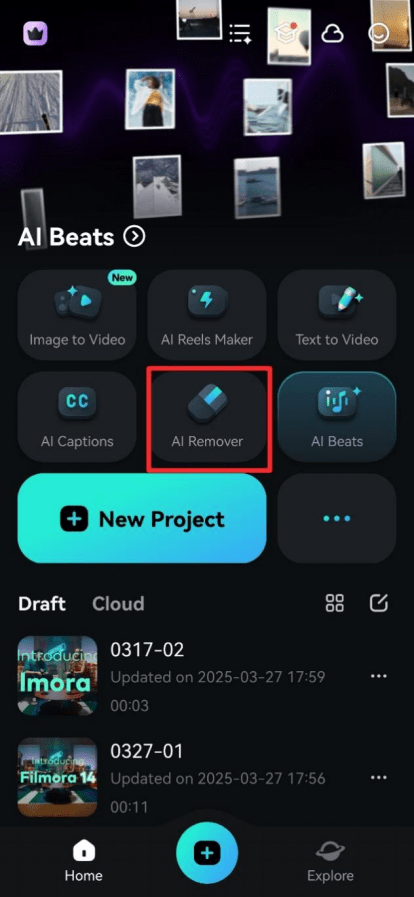
If you are looking for a simple way to remove object from videos directly on your phone, the Filmora mobile app might be the right choice. The AI Remover feature can eliminate people, text, or any other unwanted element with a few taps of your finger. Besides AI Remover, which can easily erase objects or text in a flash, the app is loaded with other AI-supported features like automatic generation of captions through dynamic captions, text-to-video, and AI Auto Cut for quick highlight creation.
Step 1. Just hit the AI Remover tile in the app's Quick Access Panel. Select either Remove Object or Remove Text, then press the Try Now button at the bottom of the screen.
Step 2. Choose a video clip in which you want to remove an object or text from in the timeline, and locate the AI Remover in the toolbar below.
Step 3. Afterwards, pick Remove Object or Remove Text and press the Process Now button at the bottom of the screen.

2. Remove Objects Photo & Video
If you are looking for a light, easy-to-use mobile app that can clean images quickly, then the Remove Objects Photo & Video app is a great choice for Android. It is aimed at quick removals in photos and videos with just a few simple tools, such as rectangle, lasso, and one-tap magic eraser. Besides that, the app supports multiple selections, zoom for accurate editing, and even lets you pick the exact time when the object should disappear in the video.
Steps to remove objects from a video
Step 1: Upload your video
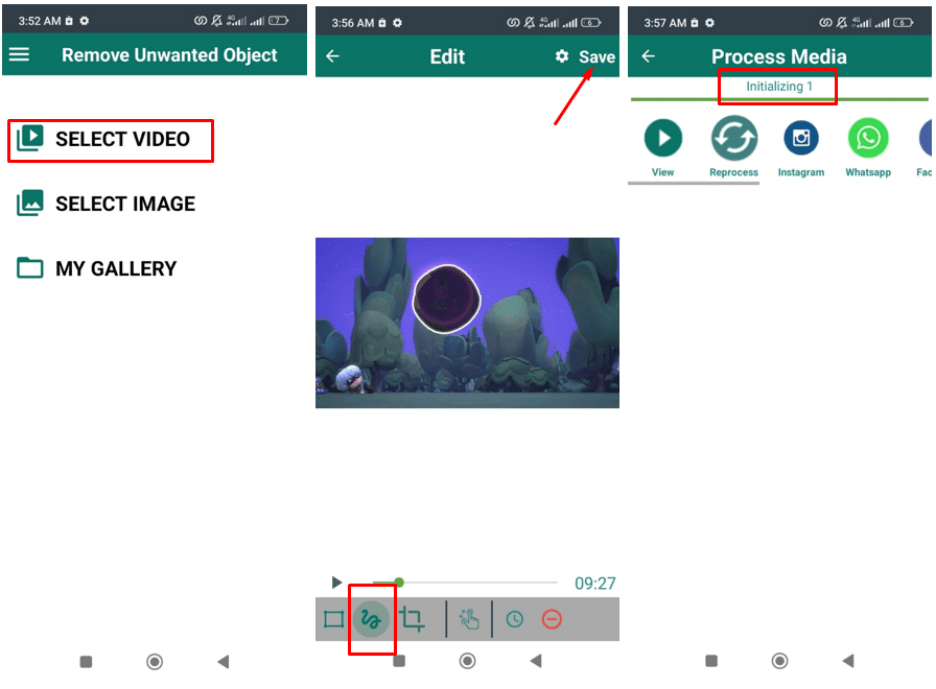
Open the app and tap Select Video to import the clip you want to edit.
Step 2: Mark and adjust
Use the Drawing Tool to highlight the object. Tap the Clock icon to adjust the time range if needed.
Step 3: Save and review
Tap Save to process the video, then tap View to preview the final result.
Part 3: How to Remove Objects from Videos Online
1. Media.io's online object remover
With Media.io's online object remover, you can delete unwanted elements, people, text, or even distractions from the photos and videos with just a few clicks. Since the AI is built right into your browser, it doesn't require you to install Photoshop or other large software, and still gives you HD, watermark-free results ready for immediate downloading. Besides being extremely fast and intuitive, the tool is compatible with all the major devices you have, a PC, tablet, or mobile. You can delineate unwanted elements quite accurately, change the brush size, and remove several things at a time.
Step 1: Upload your video
Go to Media.io’s Online Object Remover and upload your video. It works with most common video formats.
Step 2: Highlight unwanted elements
Select the person, object, or text you want to remove, then click Generate to let the AI process the image.

2. Fotor
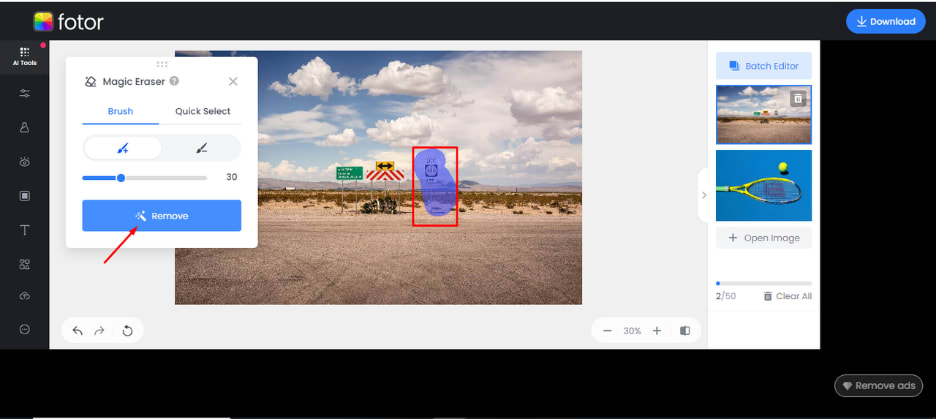
Fotor's AI-based video object removal can help you instantly get rid of the undesired things (people, logos, text, emojis, or moving objects) from videos without deteriorating the quality. The tool is browser-based, supports main video formats such as MP4, MOV, WebM, and M4V, and allows videos up to 4K, 60 seconds, 60 FPS, and 1 GB. Besides that, its AI provides a smart background fill after the object removal, which gives a natural and blur-free output.
Step 1: Upload your video
Press the Upload button and choose a video to edit. The formats supported are MP4, MOV, WebM, and M4V.
Step 2: Highlight unwanted elements
Take the Brush tool and highlight the objects, people, text, or logos you want to remove. Press Remove, and the AI will process your video.
Step 3: Download your edited video
When AI removes unwanted elements, download the clean video in MP4 format and save it for your use.
Tips for removing objects from videos
- Plan your shot first – Minimize unwanted objects while recording to reduce editing work later.
- Use precise selection tools – Brush carefully around objects to get cleaner results.
- Remove objects in small segments – For long or moving objects, process frame by frame for accuracy.
- Check background blending – Ensure the AI fills removed areas naturally to avoid noticeable patches.
- Preview before saving – Always review your video after editing to make sure nothing important was removed accidentally.
- Use the right tool for your device – Mobile apps like Filmora or Remove Objects work best on phones, while Media.io and Fotor are ideal for desktop or browser-based editing.
Conclusion
Summing up, it is now quite simple to eliminate unwanted elements from the videos using AI-based tools, which are the most up-to-date. In fact, with the aid of these tools, one can easily and effectively get rid of distractions from the footage and produce a neat product even without having high-level editing skills. Filmora, with its user-friendly AI Object Remover, is clearly the best bet to help you smoothly remove objects or texts while keeping the background looking natural.
Comments
Loading comments…