The real reason Claude keeps asking (it’s not a bug), the three-level permission system you didn’t know existed, and the brand-new Auto Mode that changes everything.
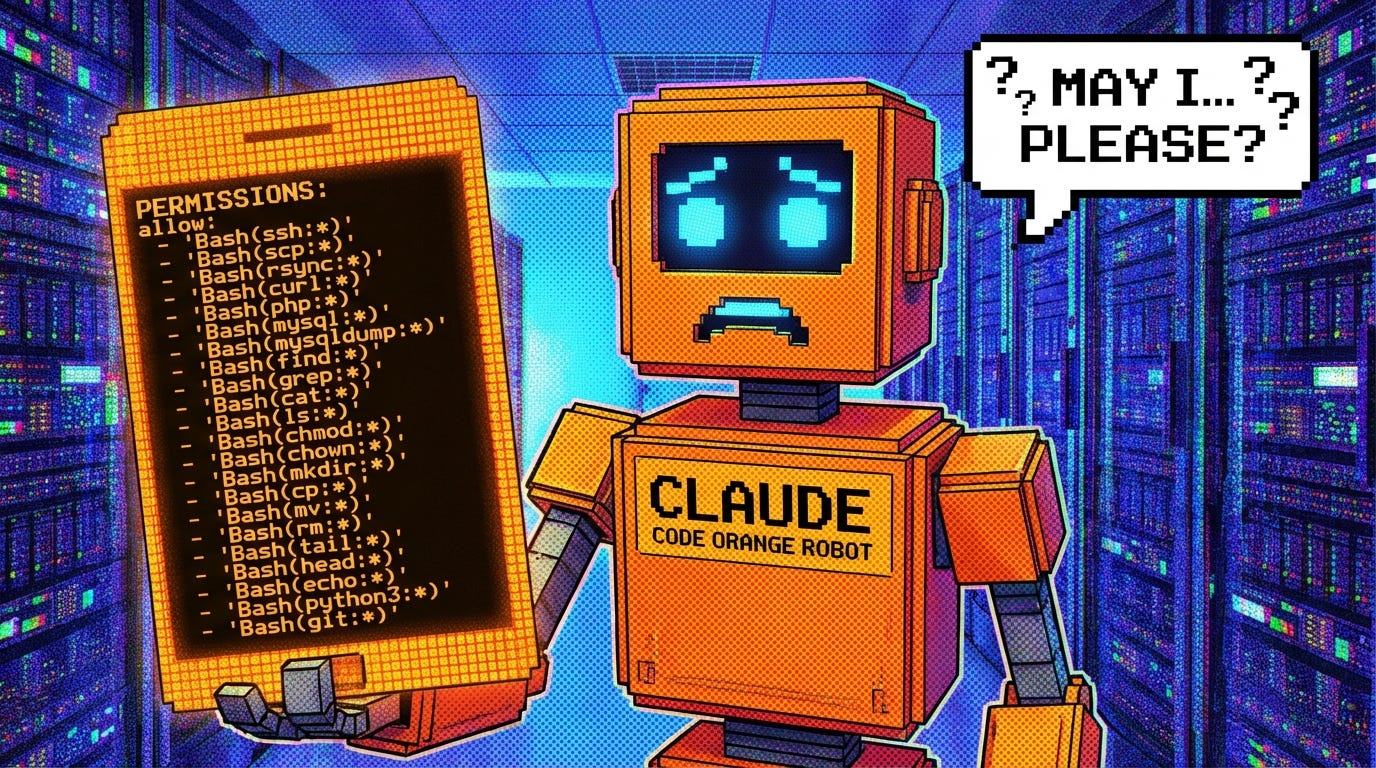
The tenth permission prompt appeared while I was deploying a critical fix to production.
SSH to xxx.xxx.xxx.xxx? (y/n)
Then another.
SCP files to server? (y/n)
Then another.
Run composer install? (y/n)
I was using Claude Code’s specialized php-expert subagent to push changes to my LAMP stack VPS. Every single command — SSH, SCP, PHP, MySQL — triggered a permission request. The agent was trying to help. The tool was trying to protect me. And I was stuck in an endless loop of typing "y" and hitting enter.
If you’ve used Claude Code for more than a day, you’ve hit this wall. The permission system feels like it’s fighting you. But here’s what I learned after digging into Anthropic’s security documentation and configuring production deployments for two separate projects: Claude isn’t being annoying. It’s being careful.
And once you understand how the permission system actually works, you can configure it once and never see another unnecessary prompt again.
Why Claude Asks (The Security Reason You Need to Understand)
Claude Code doesn’t ask for permission because Anthropic thinks you’re incompetent. It asks because agentic AI systems are vulnerable to prompt injection attacks.
Here’s the threat model: You ask Claude to read a file. That file contains malicious instructions disguised as code comments. Claude interprets those instructions as part of your request and executes them. Your codebase just hijacked your AI assistant.
This isn’t theoretical. Anthropic’s security documentation explicitly calls out “prompt fatigue mitigation” as a design consideration — they know the prompts are annoying, but the alternative is worse.
Claude Code uses strict read-only permissions by default. When additional actions are needed — editing files, running tests, executing shell commands — Claude requests explicit permission. The system is designed to “fail closed”: unmatched commands default to requiring manual approval.
This is good design. You just need to tell Claude what you actually trust.
The Permission System (Three Rules, Evaluated in Order)
Claude Code’s permission system uses three types of rules:
1. Deny — Always block (overrides everything)
2. Ask — Prompt for confirmation (the default)
3. Allow — Auto-approve silently
Rules are evaluated in order. Deny wins first. If nothing matches, Claude asks.
Permission rules follow a simple format: Tool or Tool(specifier)
Examples:
Bash— matches ALL bash commandsBash(npm run *)— matches commands starting withnpm runBash(ssh *)— matches all SSH commandsRead(./.env)— matches reading the.envfile specificallyWebFetch(domain:example.com)— fetch requests to a specific domain
The wildcard * matches anything. The colon : syntax works for commands like ssh:* and curl:*.
This is a whitelist system. You’re not listing what Claude can’t do. You’re listing what it can do without asking.
The Four-Level Hierarchy (And When to Use Each)
Here’s where it gets interesting. Claude Code evaluates permissions across four configuration scopes, and the highest scope wins:
1. Managed (managed-settings.json)
Enterprise IT-deployed settings. You can't override these. If your company blocks SSH, you're not SSH-ing.
2. Local (.claude/settings.local.json)
Personal, project-specific settings. Gitignored by default. This is where you put your machine-specific or security-sensitive permissions.
3. Project (.claude/settings.json)
Team-shared settings, committed to git. Use this for permissions your whole team needs.
4. User (~/.claude/settings.json)
Personal global defaults, applied to every project unless overridden.
Here’s the critical detail: Array settings like permissions.allow merge across scopes. They don't replace each other. If your user settings allow Bash(npm *) and your project settings allow Bash(ssh *), Claude gets both.
Solving the Real Problem (My LAMP Stack Deployment)
Back to my production deployment nightmare. I had a VPS at xxx.xxx.xxx.xxx. Every time my php-expert subagent tried to SSH or SCP files, Claude stopped. The agent was doing exactly what I asked — it just needed permission to do it unsupervised.
Here’s how I fixed it at three levels.
Global user settings ~/.claude/settings.json:
{
  "permissions": {
    "allow": [
      "Bash(curl:*)",
      "Bash(ssh *xxx.xxx.xxx.xxx*)"
    ]
  }
}
This allows all curl commands globally (I use those constantly) and specifically allows SSH to my production server. Every project I work on gets these permissions.
Project local settings .claude/settings.local.json:
{
  "permissions": {
    "allow": [
      "Bash(ssh:*)",
      "Bash(scp:*)",
      "Bash(php:*)",
      "Bash(mysql:*)"
    ]
  }
}
This is gitignored, so it’s just for me. My local environment needs to SSH, SCP, run PHP scripts, and execute MySQL commands without interruption. My teammates might not want these permissions — that’s fine. This file doesn’t get committed.
Agent-level permissions .claude/agents/php-expert.md:
---
name: php-expert
tools: Read, Write, Edit, Bash
permissions:
  allow:
    - "Bash(ssh:*)"
    - "Bash(scp:*)"
    - "Bash(rsync:*)"
    - "Bash(curl:*)"
---
This is where it gets elegant. My php-expert subagent is a specialized deployment assistant. It knows the codebase. It knows the server. It should never have to ask me if it's okay to SSH.
Agent-level permissions are the cleanest solution for specialized subagents. You define the permissions once, in the agent definition itself. Every time that agent activates, it brings its permission set with it.
After configuring these three layers, my deployment flow became frictionless. Claude Code still protects me from prompt injection. I just told it what “trusted” means in my context.
The Nuclear Option (And Why You Might Want It)
If you’re working in a trusted repository with a tight deadline, here’s the fast solution:
{
  "permissions": {
    "allow": [
      "Bash",
      "Edit",
      "Write"
    ]
  }
}
This allows all bash commands, all file edits, and all file writes without asking.
Is this risky? Yes. Should you do it in production? Probably not. But if you’re prototyping in a sandboxed environment or working on a personal project with no external dependencies, it’s a legitimate choice.
The key is intentionality. Don’t allow everything because you’re frustrated. Allow everything because you’ve evaluated the risk and decided velocity matters more than guardrails in this specific context.
I use the nuclear option in throwaway experiment repos. I use the three-layer approach in production codebases.
The New Game-Changer: Auto Mode
Here’s what just changed. Anthropic released a new permission mode called Auto Mode, and it fundamentally shifts how Claude Code handles permissions.
Instead of matching shell patterns, Auto Mode uses an AI classifier to determine what to auto-approve versus what to prompt for. You configure it with prose rules, not regex patterns.
Settings format:
{
  "autoMode": {
    "environment": ["Trusted repo: github.example.com/acme"],
    "allow": ["Safe to run npm install and build commands"],
    "soft_deny": ["Ask before any destructive database operations"]
  }
}
You describe the environment. You describe what’s safe. You describe what should always prompt. Claude interprets those rules contextually.
Activating Auto Mode:
- Use
--permission-mode autowhen starting Claude - Or cycle through modes with
Shift+Tab(normal → auto → plan) - Or set
useAutoModeDuringPlan: trueto make Plan Mode use auto semantics by default
Why this matters: You no longer need to enumerate every possible command pattern. You just describe the policy in natural language. Claude figures out the rest.
Example: “Allow all read operations and non-destructive writes. Always ask before deleting files, dropping tables, or making external network requests.”
That’s it. No wildcards. No regex. Just intent.
Disabling Auto Mode:
If you don’t trust the classifier (or work in a high-security environment), set disableAutoMode: "disable" to remove auto from the cycle entirely.
What NOT to Do (The Security Anti-Patterns)
I’ve seen developers do this:
{
  "permissions": {
    "allow": ["*"]
  }
}
Don’t. This allows everything — every tool, every command, every file operation — without any confirmation. You’ve effectively disabled agentic safety.
If you’re going to do this, at least scope it to specific tools:
{
  "permissions": {
    "allow": ["Bash(*)", "Edit(*)", "Write(*)"]
  }
}
Better? Slightly. Still risky if you’re working with untrusted code or external dependencies.
The right mental model isn’t “disable security.” The right mental model is “define trust zones.”
The Mental Model Shift: Trust Zones, Not Whitelists
Here’s how I think about Claude Code permissions now:
Zone 1: Global Trust (User settings)
Commands I trust everywhere. curl, SSH to known servers, npm install. These go in ~/.claude/settings.json.
Zone 2: Project Trust (Project settings)
Commands my team trusts for this specific project. Deployment scripts, database migrations, build commands. These go in .claude/settings.json and get committed.
Zone 3: Personal Trust (Local settings)
Commands I trust that my teammates might not. SSH keys, server access, local dev tools. These go in .claude/settings.local.json and stay gitignored.
Zone 4: Agent Trust (Agent permissions)
Commands specific subagents should always be allowed to run. Deployment agents get SSH. Testing agents get pytest. Build agents get npm run build. These go in the agent's YAML frontmatter.
Zone 5: Contextual Trust (Auto Mode) Everything else. Let the AI classifier decide based on prose rules.
This isn’t about defeating the safety system. It’s about teaching Claude Code what “safe” means in your environment.
The Real Win: Flow State With Agentic AI
After configuring permissions properly, something shifted in how I work with Claude Code.
I stopped thinking about the tool. The friction disappeared. The agent does what I need without interrupting me. I describe the outcome. Claude orchestrates the execution. The permissions system becomes invisible.
That’s the goal. Not “no security.” Not “ask me everything.” Invisible, context-aware safety that adapts to how you actually work.
Claude Code’s permission system felt like an obstacle because I didn’t understand it. Once I learned the three rule types, the four-level hierarchy, and the agent-level configuration options, it became a precision instrument.
And with Auto Mode, the system just got smarter. You describe intent. Claude interprets it. The only prompts you see are the ones that actually matter.
The balance between velocity and safety isn’t a trade-off. It’s a configuration problem. And now you know how to solve it.
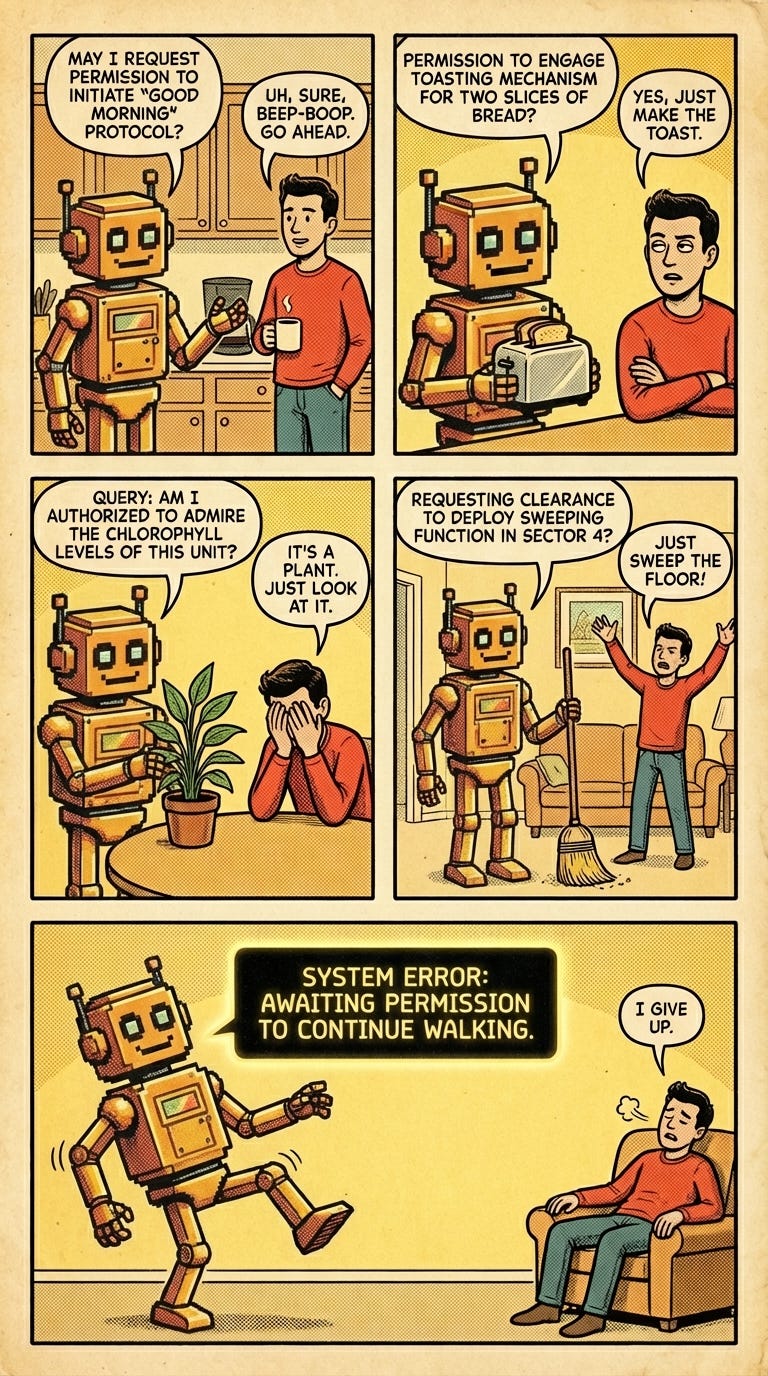
What’s your biggest friction point with Claude Code right now? Drop it in the comments — I’m curious what other workflows need this kind of deep-dive.
Toni Maxx brings years of technology leadership to explore how AI is transforming developer workflows. After working at Google, Meta, and Bank of America, his current mission: “AI didn’t replace jobs — it promoted us all to conductors of intelligent systems.” Founder of OverNormal Studios and LogicBaker innovation studio.
Tags: #ClaudeCode #AI #DeveloperProductivity #DevOps #Programming
Comments
Loading comments…